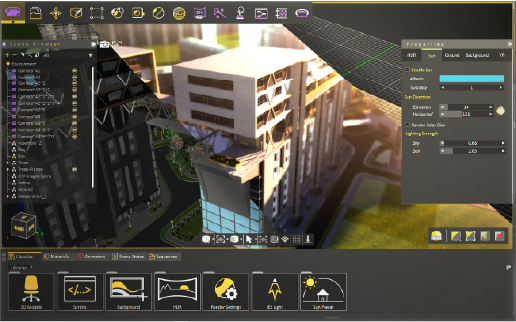



SimLab Soft optimized the powerful SimLab VR Viewer for Meta Quest, enabling seamless CAD and architectural model visualization in standalone VR
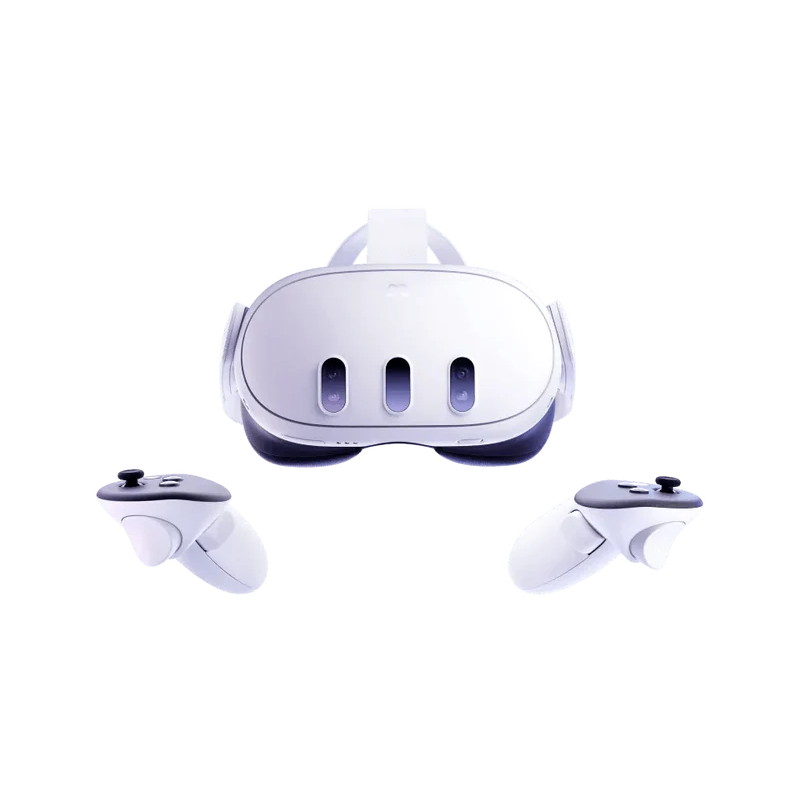
Compatible with Meta Quest 2, Quest 3, Quest Pro

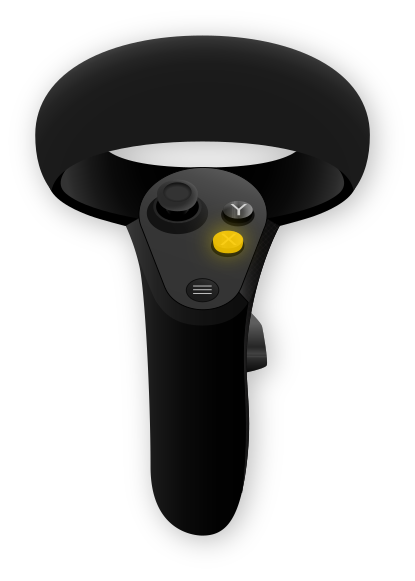
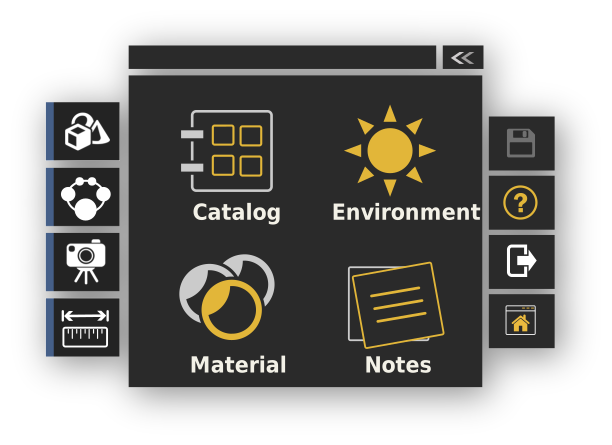
Professional VR tools and controls in an intuitive interface optimized for Quest performance.



 Manage Environment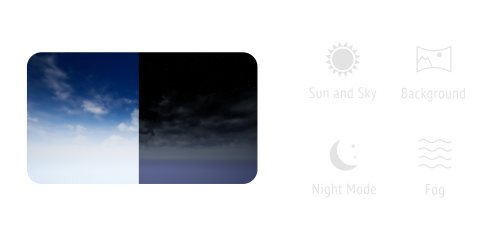
 VR Notes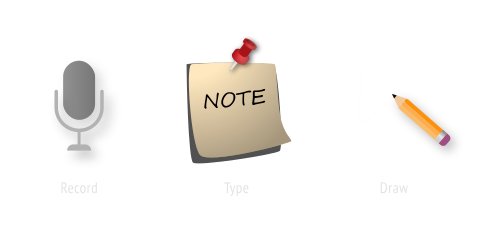
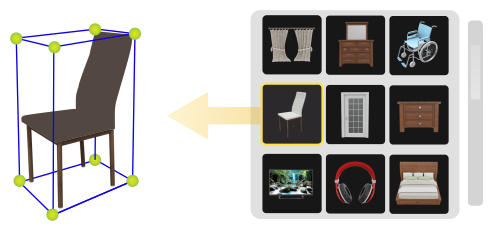
 Scene Building
Manipulate CAD models directly in VR - move, scale, rotate and duplicate objects with Quest controllers.
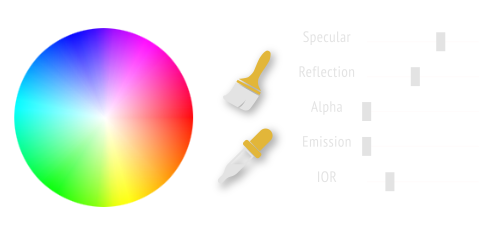
 Material Options
Switch between different material configurations and model states through intuitive VR menus.
 Scene Navigation
Set navigation points throughout your VR scene for instant teleportation between key locations.
 Measurement Tool
Measure precise distances between any points in your CAD models directly in VR.


VR Collaboration
Meta Quest natively supports SimLab VR Collaboration. Join multi-user VR sessions, interact with team members, and communicate in real-time within shared virtual environments.
Sync Your VR Scenes Wirelessly
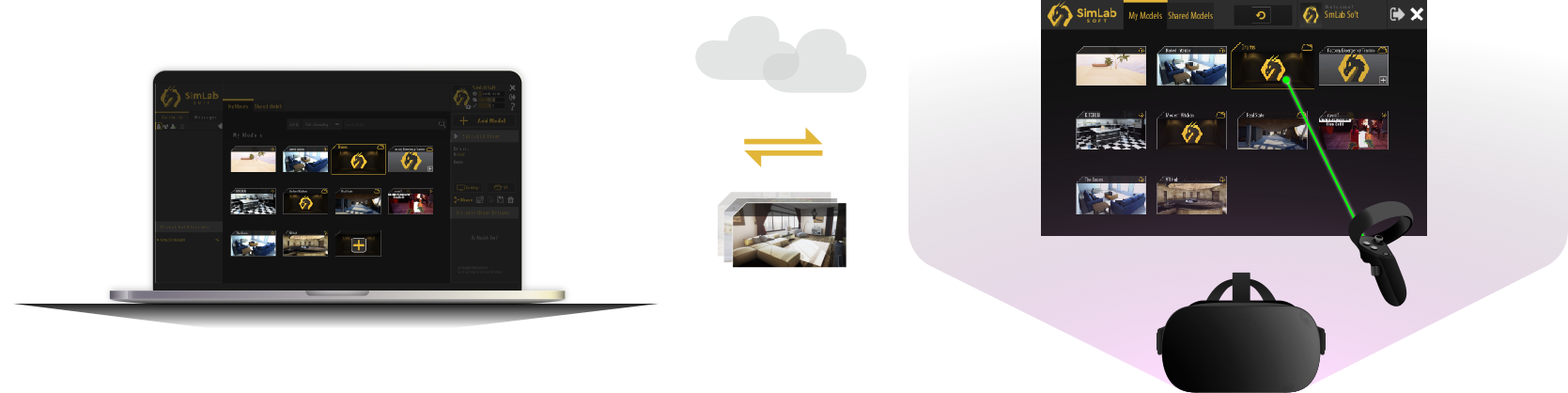
Pair your Meta Quest with SimLab Composer on desktop. All VR experiences and modifications sync automatically to your Quest headset - no cables required.
Create VR Experiences Without Coding
SimLab VR Viewer is fully compatible with Meta Quest 2, Meta Quest 3, Meta Quest Pro, and the original Meta Quest. The app is optimized for peak performance across all Quest devices.
You can install SimLab VR Viewer directly from the Meta Quest Store for the easiest setup. Alternatively, use offline installation in developer mode by downloading from our website and sideloading the APK file.
First, pair your Quest device with your SimLab account through the desktop SimLab VR Viewer. Then, all your VR experiences and modifications will automatically sync wirelessly to your Quest headset.
SimLab VR Viewer supports VR packages (.vrpackage) created with SimLab Composer, which can contain models from 40+ CAD formats including SOLIDWORKS, Revit, SketchUp, Rhino, AutoCAD, STEP, and more.
Yes, SimLab VR Viewer includes full VR collaboration support. Multiple Quest users can join the same VR session, interact with models together, and communicate in real-time within the virtual environment.
The viewer includes measurement tools, material management, environment switching, VR catalogs, VR notes, object manipulation (move, scale, rotate, copy), teleportation, and scene navigation cameras.
Large scenes may take time to load. Ensure your Quest has sufficient storage space (at least 2GB free), a stable Wi-Fi connection for syncing, and try optimizing your models in SimLab Composer before export.
No coding is required. Use SimLab VR Studio to create interactive VR experiences with a visual interface. Simply design your experience, export it, and sync to your Quest device.