




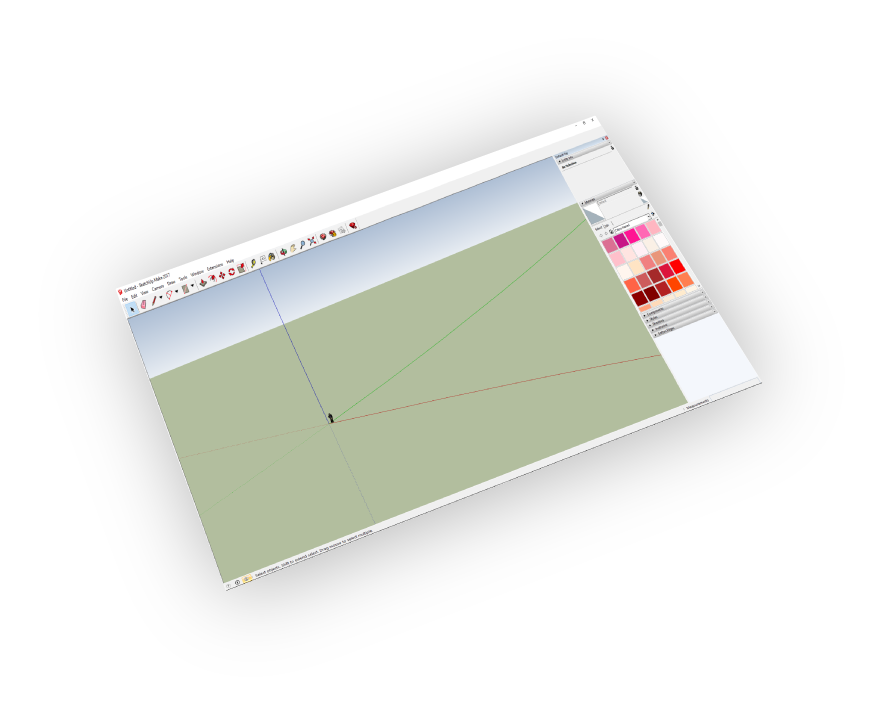
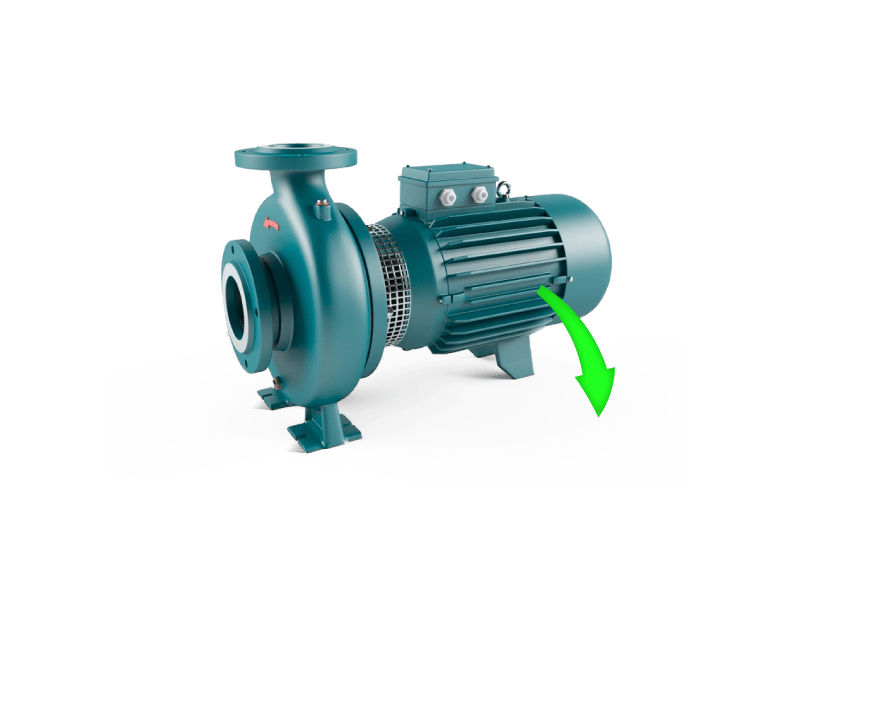

Supports
SketchUp 8 - 2026
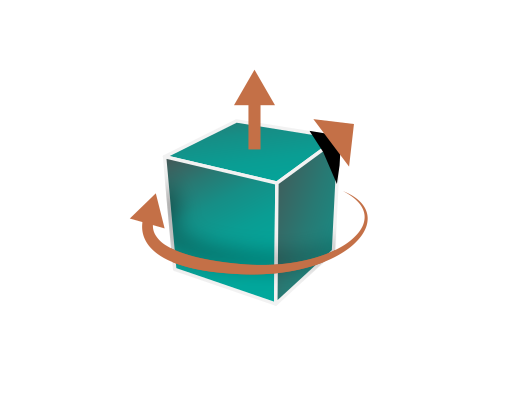
Transformations
Corrections(Up Vector,Rotate by, Scaling Multiplier)

Ease Of Use
Quality outputs in minimal steps
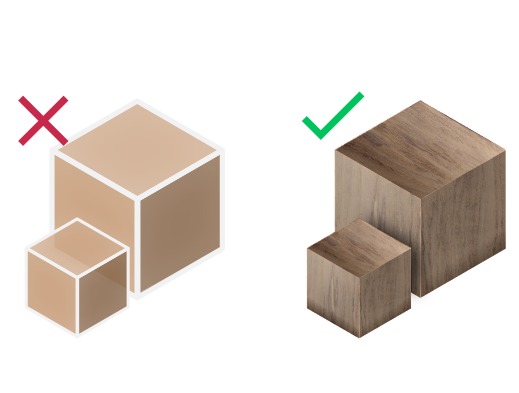
Materials Support
Import your models with their materials
Why Import STEP Files to SketchUp?
What is a STEP File?
STEP (Standard for the Exchange of Product Data) is an ISO 10303 format designed for comprehensive 3D CAD data exchange. Unlike mesh-based formats like STL, STEP files preserve:
- Precise NURBS geometry and solid models
- Complete assembly structures with hierarchy
- Material properties and color information
- Manufacturing tolerances and metadata
STEP vs STL vs OBJ - Which Format to Choose?
| Format | Best For | Precision |
|---|---|---|
| STEP | CAD/Engineering | Exact |
| STL | 3D Printing | Tessellated |
| OBJ | Visualization | Polygonal |
SimLab STEP Importer supports both AP203 and AP214 STEP file versions, ensuring compatibility with all major CAD software including SolidWorks, CATIA, Inventor, and Fusion 360.
Common Issues & Solutions
Import Results in High Polygon Count
STEP files contain precise NURBS data that gets tessellated during import. Use the tessellation quality settings to balance between accuracy and performance.
Materials Not Importing Correctly
Ensure "Import Materials" is checked in settings. Some CAD programs export materials differently - try both AP203 and AP214 formats.
Model Appears at Wrong Scale
STEP files may use different unit systems. Use the Scaling Multiplier option to adjust - common values are 25.4 (inches to mm) or 0.0394 (mm to inches).
Assembly Structure Lost
SimLab STEP Importer preserves assembly hierarchy. Check that your STEP file was exported with assembly information from your CAD software.


Pricing
SketchUp STEP Importer
SketchUp
STEP Importer

How to get it and use it?
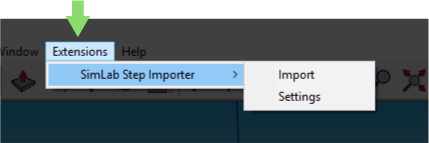
- Download the plugin and install it.
- Run SketchUp.
- Go to SimLab Tab and find STEP Importer Tab as shown in the image.
- To obtain a trial license, open settings then follow the steps shown here.

FAQ
- What information is imported from the STEP model to SketchUp?
The plugin transfers geometries, materials, textures, assembly structures, and color information. It supports both AP203 and AP214 STEP formats, ensuring compatibility with all major CAD software including SolidWorks, CATIA, Inventor, and Fusion 360.
- What versions of SketchUp are supported?
SimLab STEP Importer supports SketchUp 8, SketchUp 2013, 2014, 2015, 2016, 2017, 2018, 2019, 2020, 2021, 2022, 2023, 2024, and 2026. The plugin works on both Windows and macOS operating systems.
- What control do I have over the imported STEP file?
The plugin provides full control over import settings including: Up Vector adjustment for proper orientation, Scaling Multiplier for unit conversion, Material import preferences, and Tessellation quality settings. Defaults work automatically for most models.
- How is STEP different from STL for SketchUp?
STEP files preserve exact CAD geometry with NURBS surfaces, assemblies, and materials - ideal for engineering and manufacturing. STL files only contain tessellated mesh geometry without materials or assembly structure, primarily used for 3D printing.
- Can I import large STEP assemblies into SketchUp?
Yes, SimLab STEP Importer handles complex assemblies while preserving hierarchy and structure. For very large files, you can adjust tessellation quality to balance between detail and performance.
Trial licenses:
- How to request a trial license? and for how long it would be valid?
Check this page for step by step instructions on how to request and activate a trial license.
Trial licenses are valid for 14 days or 30 trials whichever comes first.
Professional licenses:
- Requesting and activating a professional license?
Check this page for step by step, instructions on how to activate a professional license upon receiving a software key that can be used for activating the Plugin.