





Supports
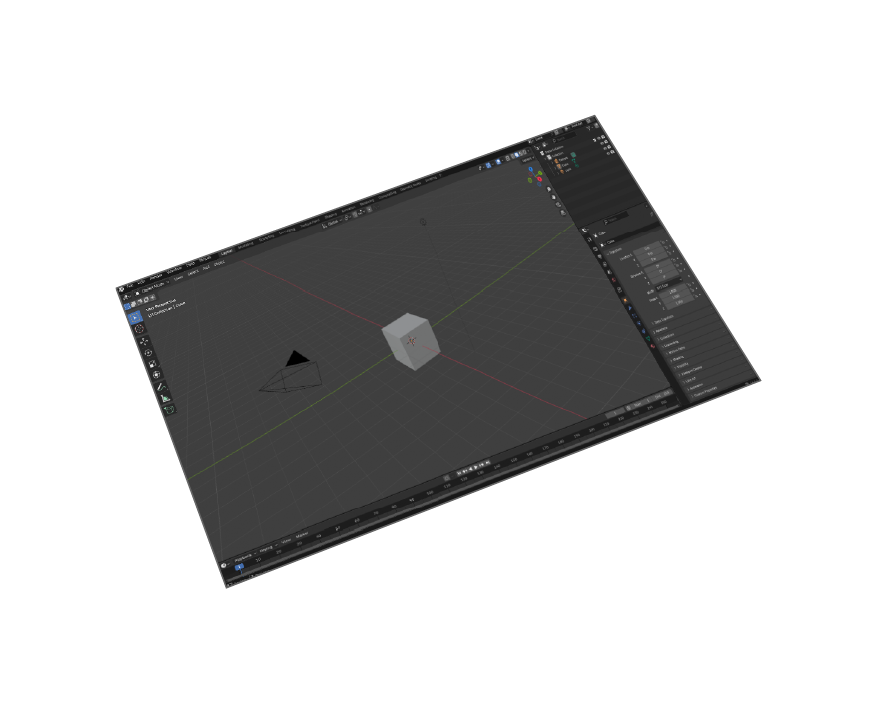
Blender 5 and older
Transformations
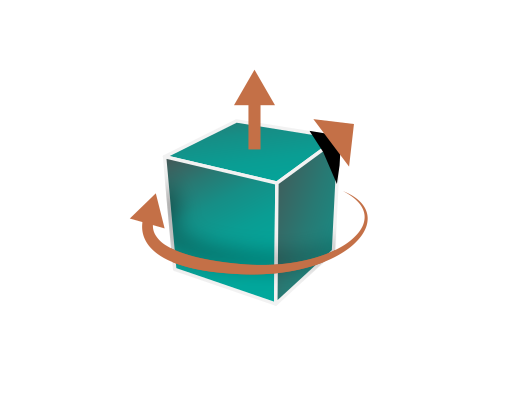
Corrections(Up Vector,Rotate by, Scaling Multiplier)
Supports
SolidWorks 2026 files and older
Materials Support
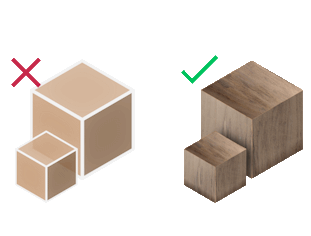
Import your models with their materials


Pricing
Blender SolidWorks Importer
Blender
SolidWorks Importer

How to Install and Use the Plugin
- Open Blender.
-
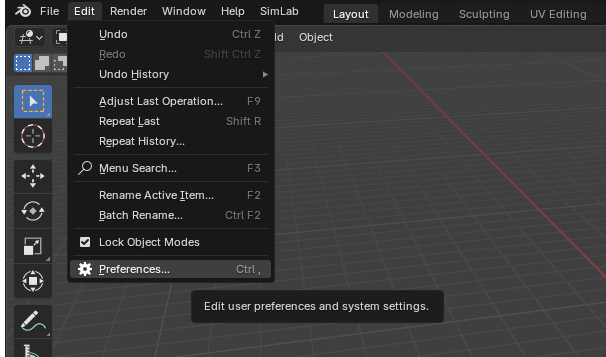
Navigate to Edit > Preferences.
-
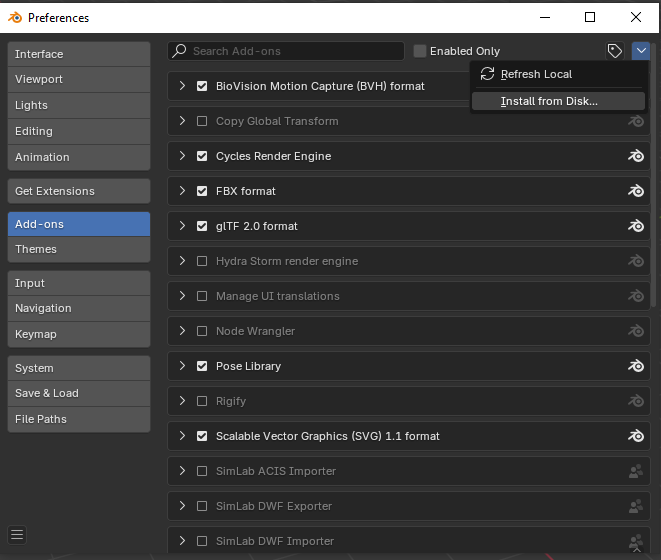
Click on Add-ons, then select the dropdown arrow at the top right and click
Install from Disk.
-
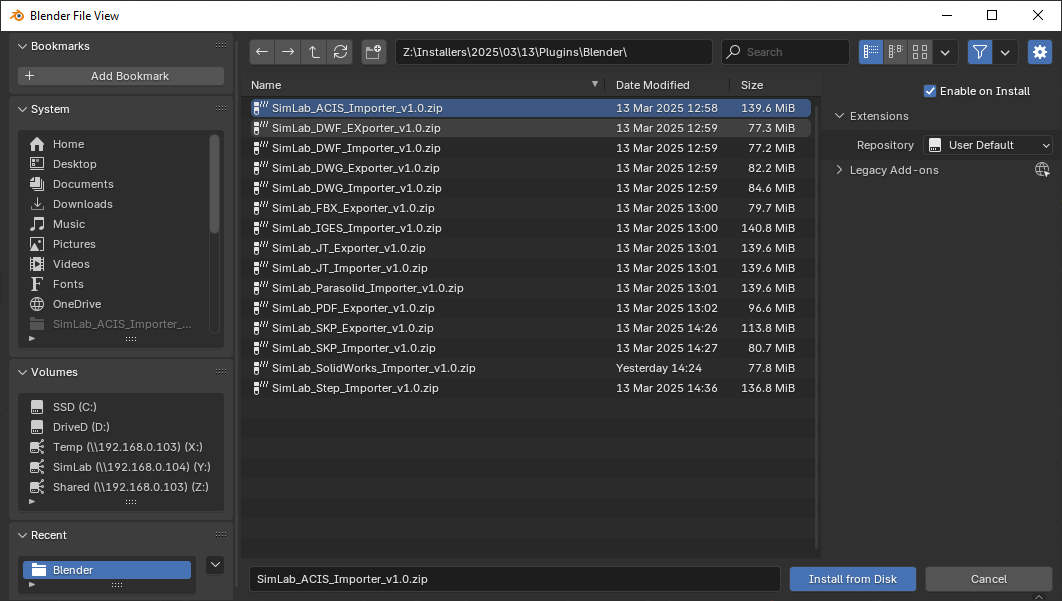
Locate the path where the ZIP file was downloaded , then click Install from Disk.
-
Go to the SimLab tab and locate the SolidWorks Importer section, as shown in the image.
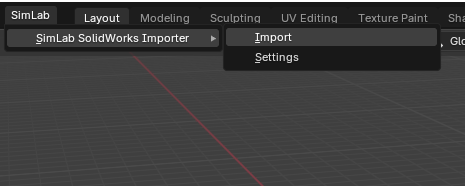
- To obtain a trial license, open Settings and follow the steps provided here.

FAQ
- What information is imported from the SolidWorks model to Blender?
The plugin transfers geometries, materials.
- What versions of Blender are supported?
The plugin supports Blender 5 and older, it works on Windows and macOS.
- What control do I have over the imported SolidWorks?
Defaults should work automatically for most of the models, the setting of the plugin still allows you to control the scale of the model, and the up vector to be used.
- How do I convert SolidWorks files to Blender?
Install the SimLab SolidWorks importer plugin, then go to File > Import > SolidWorks (.sldprt/.sldasm) in Blender, select your CAD file, and the plugin will convert geometry and materials directly into your scene.
- Can Blender import SLDPRT files directly?
No, Blender cannot import SLDPRT or SLDASM files natively. SolidWorks files require specialized conversion. The SimLab plugin enables direct import of native SolidWorks files with full material and geometry preservation.
- What's the best way to import SolidWorks models to Blender?
The SimLab SolidWorks importer provides the most direct method, preserving materials and geometry. Alternative solutions like Okino PolyTrans or FBX export workflows exist, but require additional steps and may lose material information.
- Does the plugin support SolidWorks assemblies?
Yes, the plugin can import SolidWorks assemblies (.sldasm files) while maintaining the hierarchical structure and individual part materials, making it ideal for complex multi-part CAD models.
- How to transfer SolidWorks materials to Blender?
The SimLab plugin automatically transfers material properties, colors, and surface information from SolidWorks models to Blender, unlike basic converters that only transfer geometry data.
Subscription licenses:
- Will I be able to install the latest version while I have a subscription license?
Yes, a subscription license will make you always up to date with the latest version.
- What happens when my subscription ends?
You can renew your subscription ( auto renewal option is available ), or you can cancel it.
- How can I activate my license?
After buying a subscription you will get a key, follow the steps described on the licensing page.
If you face any problem, please send an email to license@simlab-soft.com
Trial licenses:
- How to request a trial license? and for how long it would be valid?
Check this page for step by step instructions on how to request and activate a trial license.
Trial licenses are valid for 14 days or 30 trials whichever comes first.