




Supports
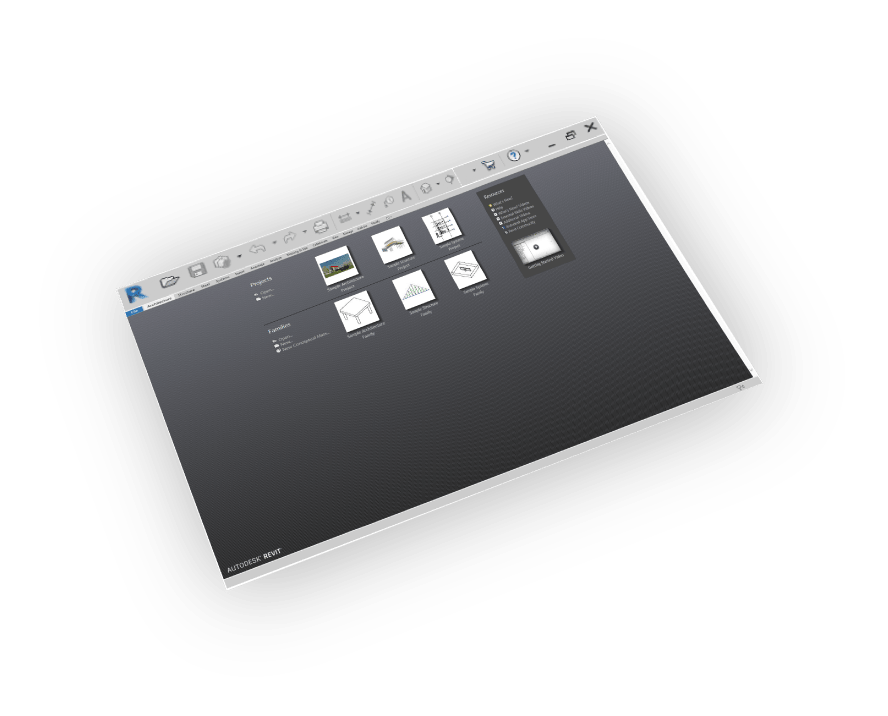
Revit 2013 - 2026
Materials Support
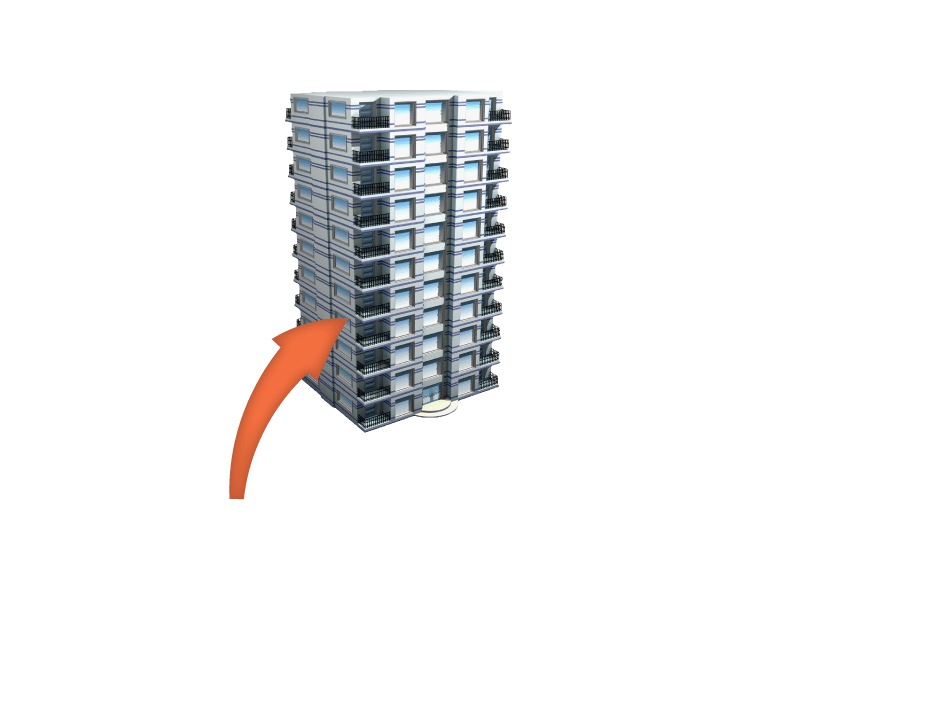
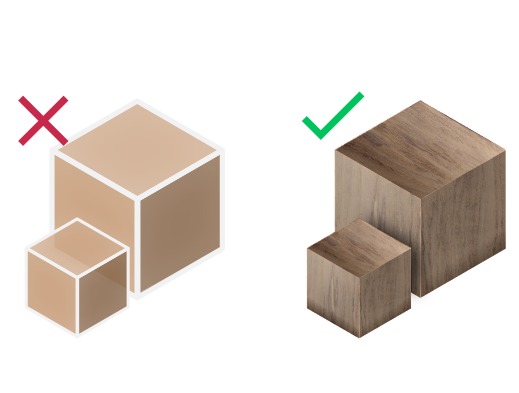
Export your models with their materials

Ease Of Use
Quality outputs in minimal steps
Transformations
Corrections(Up Vector,Rotate by, Scaling Multiplier)


Yearly Subscribtion
Revit OBJ Exporter
Revit
OBJ Exporter

How to get it and use it?
- Download the plugin and install it.
- Run Revit.
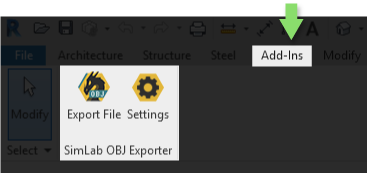
- Go to SimLab Tab and find OBJ Exporter Tab as shown in the image.
- To obtain a trial license, open settings then follow the steps shown here.

FAQ
- What information is exported to the OBJ model to Revit?
The plugin transfers geometries, materials, and textures.
- What versions of Revit are supported?
The plugin supports Revit 2026 and older, it works on Windows.
- What control do I have over the exported OBJ?
Defaults should work automatically for most of the models, the setting of the plugin still allows you to control the scale of the model, and the up vector to be used.
Trial licenses:
- How to request a trial license? and for how long it would be valid?
Check this page for step by step instructions on how to request and activate a trial license.
Trial licenses are valid for 14 days or 30 trials whichever comes first.
Professional licenses:
- Requesting and activating a professional license?
Check this page for step by step, instructions on how to activate a professional license upon receiving a software key that can be used for activating the Plugin.