




Supports
Blender 5 and earlier versions
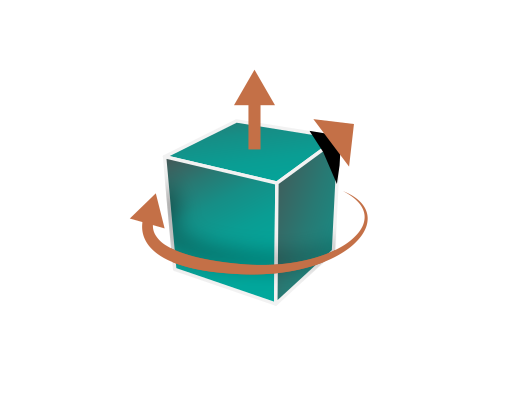
Transformations
Corrections(Up Vector,Rotate by, Scaling Multiplier)
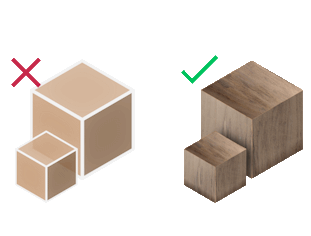
Materials Support
Import CAD models with their materials from engineering software
Professional CAD to Blender Workflow
Why Import IGES to Blender?
Bridge engineering CAD models with creative 3D visualization in Blender 5. Essential for product designers, engineers, and architects who need to bring precise CAD geometry into Blender for rendering, animation, or further modeling work.
IGES Format Advantages
IGES (Initial Graphics Exchange Specification) preserves complex NURBS surfaces, precise geometric data, and engineering tolerances better than STL or OBJ formats. Ideal for mechanical parts, automotive components, and aerospace designs.
Professional Use Cases
• Mechanical design visualization and marketing
• Automotive component rendering and animation
• Aerospace part documentation and presentation
• Product development workflow integration
• Engineering model review and collaboration
CAD Software Integration
Seamless import from AutoCAD, SolidWorks, CATIA, NX, Inventor, and other professional CAD systems that export IGES format. Maintains geometric accuracy and material properties for professional workflows.


Pricing
Blender IGES Importer
Blender
IGES Importer

How to Install and Use the Plugin
- Open Blender.
-
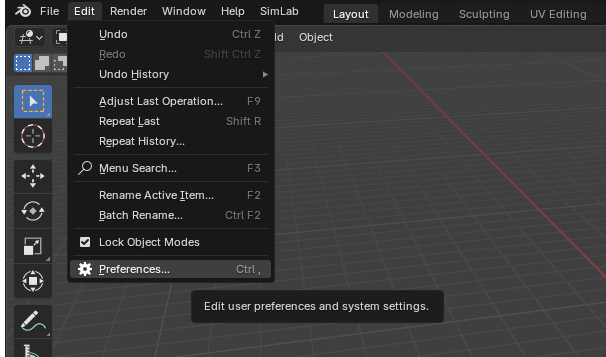
Navigate to Edit > Preferences.
-
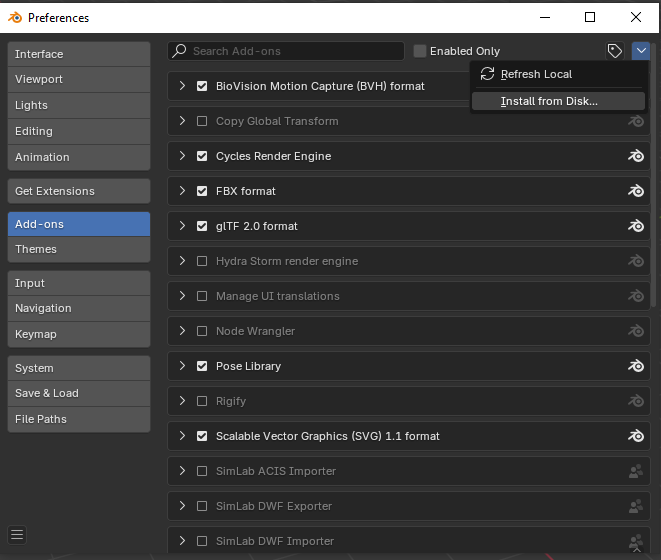
Click on Add-ons, then select the dropdown arrow at the top right and click
Install from Disk.
-
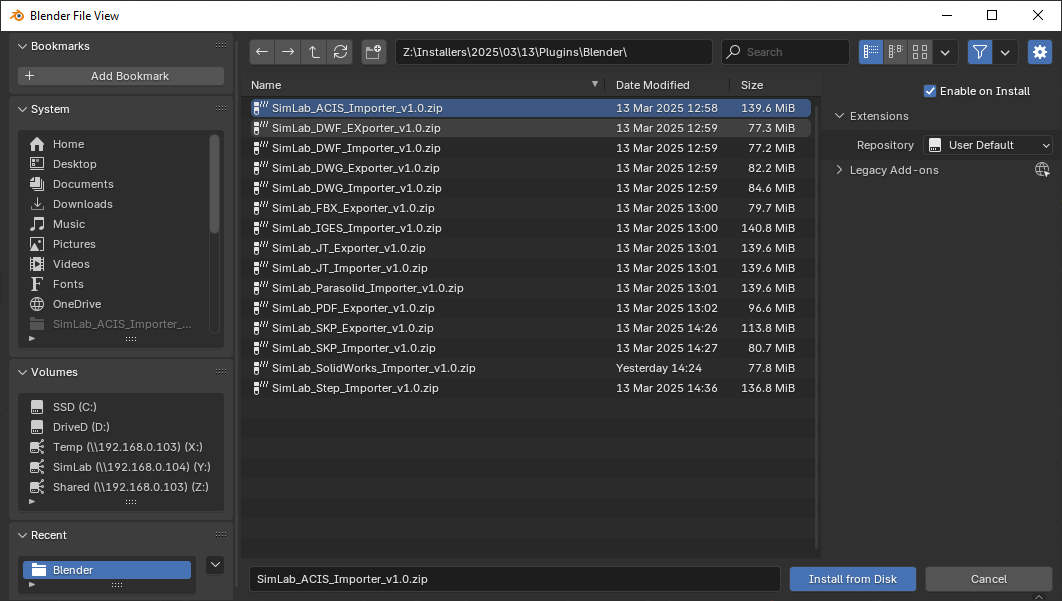
Locate the path where the ZIP file was downloaded , then click Install from Disk.
-
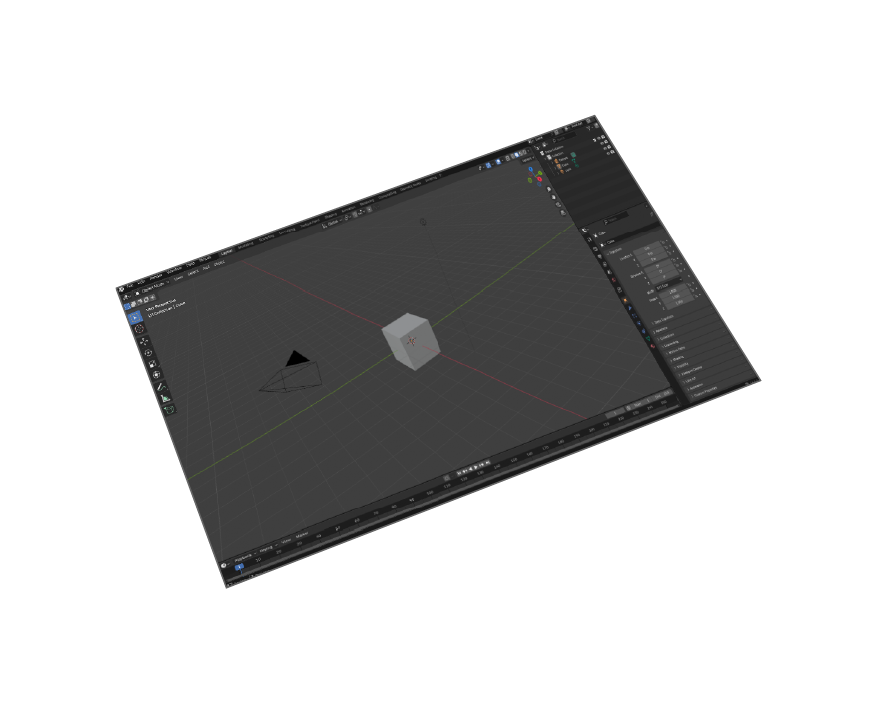
Go to the SimLab tab and locate the IGES Importer section, as shown in the image.
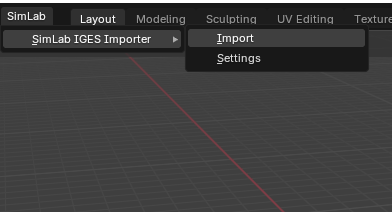
- To obtain a trial license, open Settings and follow the steps provided here.

FAQ
- Does the IGES Files Support Textures?
Yes, it supports materials and textures.
- Can the user automatically fix scale, orientation, and up vector during importing?
Yes, the plugin provides settings to automatically scale, rotate, and change up vector upon importing CAD models from IGES format.
- What information is imported to Blender from the IGES model?
The plugin imports 3D geometries, materials, textures, and preserves engineering data from CAD software to Blender with high precision.
- What versions of Blender are supported?
The plugin supports Blender 5, 4.0, 3.6 LTS and all earlier versions. Compatible with Windows and macOS systems for professional CAD workflows.
- What control do I have over the imported IGES?
Smart defaults work automatically for most CAD models, but the plugin settings allow full control over import scale, coordinate system orientation, unit conversion, and geometric transformations for specific engineering workflows.
Subscription licenses:
- Will I be able to install the latest version while I have a subscription license?
Yes, a subscription license will make you always up to date with the latest version.
- What happens when my subscription ends?
You can renew your subscription ( auto renewal option is available ), or you can cancel it.
- How can I activate my license?
After buying a subscription you will get a key, follow the steps described on the licensing page.
If you face any problem, please send an email to license@simlab-soft.com
Trial licenses:
- How to request a trial license? and for how long it would be valid?
Check this page for step by step instructions on how to request and activate a trial license.
Trial licenses are valid for 14 days or 30 trials whichever comes first.