



Complete glTF 2.0 Export Solution for Maya
Transform your Maya 3D models into industry-standard glTF 2.0 format with SimLab's professional exporter plugin. Export directly to GLB (binary) or glTF (JSON/ASCII) for seamless integration with web viewers, game engines, and AR/VR platforms.
Supported Maya Versions & Platforms
- Maya Versions: 2010 through 2026
- Operating Systems: Windows (64-bit) and macOS
- glTF Specification: Full glTF 2.0 compliance
- Output Formats: .gltf (JSON/ASCII) with separate bin/textures, .glb (single binary file)
Key Export Features
- Geometry: Meshes with multiple UV sets, vertex colors, normals
- Materials: PBR metallic-roughness workflow, specular-glossiness support
- Textures: Automatic texture optimization, support for PNG/JPEG formats
- Animations: Skeletal (bone) animations, blend shapes/morph targets, transform animations
- Advanced: Draco mesh compression support, KHR extensions compatibility
Advanced Animation & Material Support
Animation Types
Our Maya glTF exporter preserves all your animation work with full support for:
- Skeletal animations with bone hierarchies
- Blend shapes and morph targets for facial animations
- Transform animations for object movement
- Keyframe interpolation (linear, step, cubic spline)
- Multiple animation clips in a single file
PBR Material Pipeline
Achieve photorealistic results with automatic material conversion:
- Metallic-roughness PBR workflow support
- Automatic Maya material to glTF PBR conversion
- Texture map preservation (base color, metallic, roughness, normal, occlusion)
- Emissive materials for light-emitting surfaces
- Alpha blending and cutout transparency
Integration & Workflow
Export Settings & Optimization
- Scale Control: Automatic unit conversion (cm to meters for web standards)
- Axis Conversion: Y-up to Z-up transformation for different platforms
- Texture Optimization: Automatic resizing and format conversion
- Batch Export: Process multiple scenes efficiently
- Validation: Built-in glTF validator ensures spec compliance
Target Platform Compatibility
- Web Viewers: Three.js, Babylon.js, model-viewer, Cesium
- Game Engines: Unity, Unreal Engine, Godot
- AR/VR: ARCore, ARKit, WebXR, Oculus/Meta Quest
- 3D Tools: Blender, 3ds Max (with our FBX exporter), Cinema 4D
Need other formats? Check our complete 3D file conversion plugins including USD exporter and plugin catalog.

Supports
Maya 2010 - 2026

Animations
Supports animations and keyframes

FlexBodies
Supports models with flexible animations
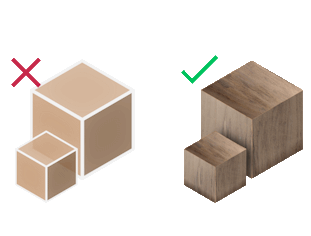
Materials Support
Import your models with their materials


Pricing
Maya GLTF Exporter
Maya
GLTF Exporter

How to get it and use it?
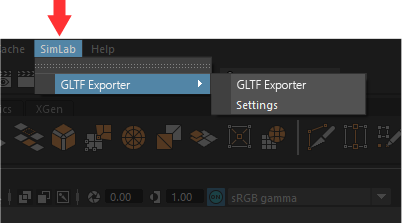
- Download the plugin and install it.
- Run Maya.
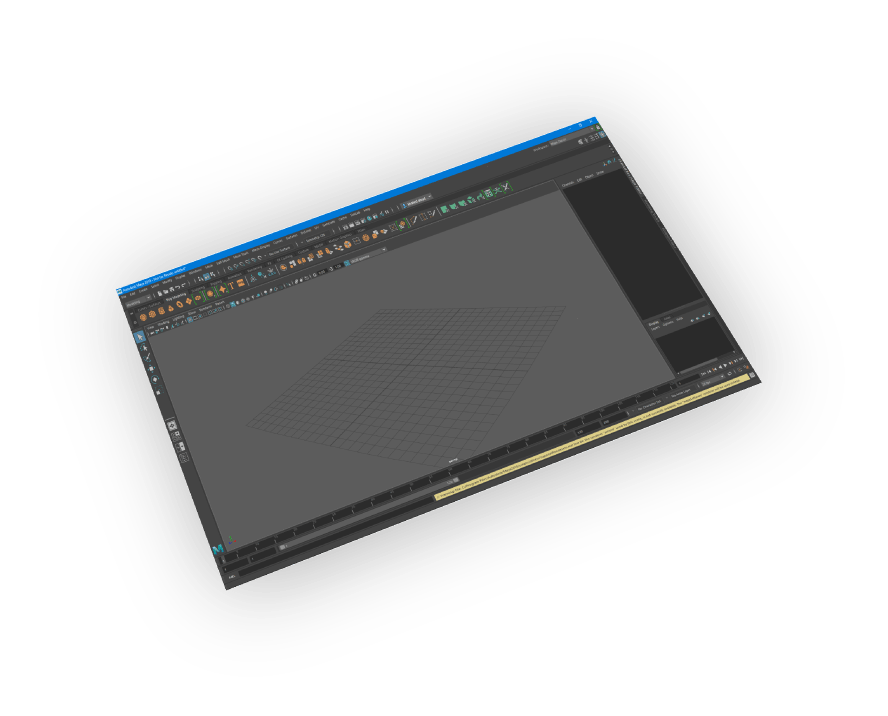
- Go to SimLab Tab and find GLTF Exporter Tab as shown in the image.
- To obtain a trial license, open settings then follow the steps shown here.

Frequently Asked Questions
- Does the Exported Model Supports ASCI or Binary GLTF?
It supports both binary GLTF (.glb) and ASCI GLTF (.gltf)
- Is animation supported in GLTF files?
Yes, it supports rigid body (transform) animation, and skeleton animation.
- Does the GLTF Files Support Textures?
Yes, it supports materials and textures.
- Can the user automatically fix scale, orientation, and up vector during exporting?
Yes, we can edit settings to scale, rotate, and change up vector upon exporting.
- What information is exported to GLTF from the Maya model?
The plugin transfers geometries, materials, and textures. It also transfers rigid body (transform) animation, and skeleton animation.
- What versions of Maya are supported?
The plugin supports Maya 2026 and older, it works on Windows and macOS.
- What control do I have over the exported GLTF?
Defaults should work automatically for most of the models, the setting of the plugin still allows you to control the scale of the model, and the up vector to be used.

Subscription licenses:
- Will I be able to install the latest version while I have a subscription license?
Yes, a subscription license will make you always up to date with the latest version.
- What happens when my subscription ends?
You can renew your subscription ( auto renewal option is available ), or you can cancel it.
- How can I activate my license?
After buying a subscription you will get a key, follow the steps described on the licensing page.
If you face any problem, please send an email to license@simlab-soft.com
Trial licenses:
- How to request a trial license? and for how long it would be valid?
Check this page for step by step instructions on how to request and activate a trial license.
Trial licenses are valid for 14 days or 30 trials whichever comes first.