



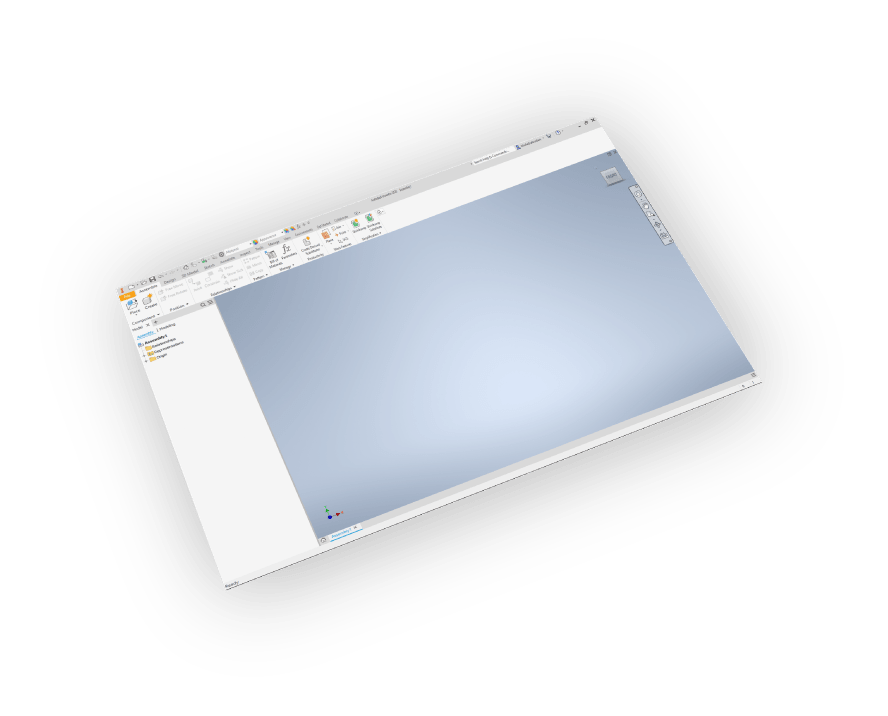


Inventor Compatibility
Inventor 2013 - 2026
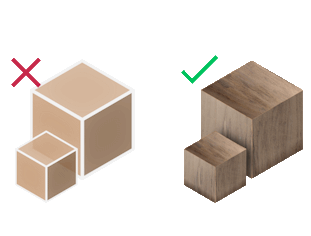
FBX Materials & Textures
Export Inventor models to FBX with preserved materials, textures, and appearance properties

Simple FBX Export
One-click FBX export from Inventor with professional-quality 3D model conversion
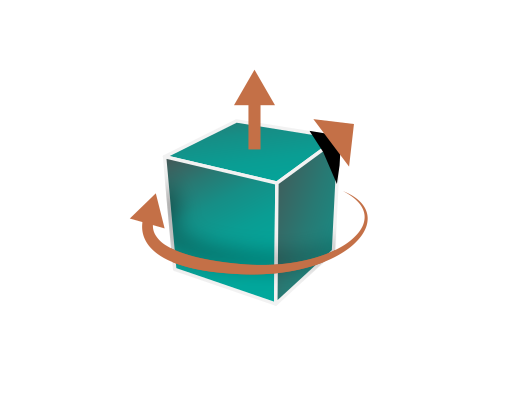
CAD Model Transformations
Advanced export settings: up vector correction, rotation, and scaling for perfect FBX output


Yearly Subscribtion
Inventor FBX Exporter
Inventor
FBX Exporter

How to Export FBX from Inventor
- Download the plugin and install it.
- Run Inventor.
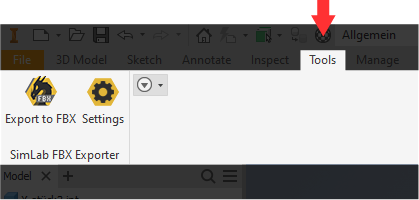
- Go to SimLab Tab and find FBX Exporter Tab as shown in the image.
- To obtain a trial license, open settings then follow the steps shown here.

FBX Export FAQ
- Does the FBX export from Inventor support materials and textures?
Yes, the FBX exporter preserves all materials and textures from your Inventor models during conversion.
- Can the plugin automatically fix scale, orientation, and up vector during FBX export?
Yes, the FBX exporter provides transformation settings to automatically adjust scale, rotation, and up vector coordinates during export from Inventor to ensure compatibility with target applications.
- What CAD data is converted when exporting FBX from Inventor?
The FBX exporter transfers complete 3D geometries, materials, textures, and assembly structures from Inventor to FBX format.
- If the plugin doesn't work correctly?
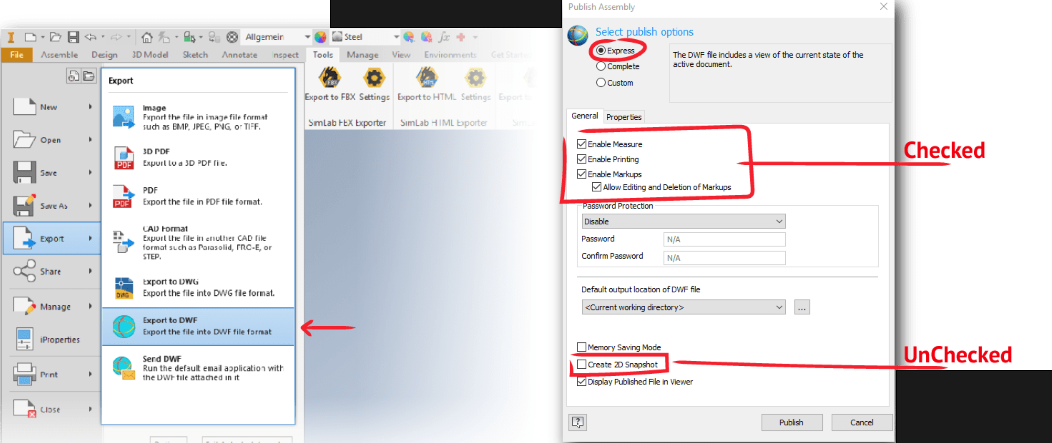
Chack your DWF export settings in inventor. From Inventor menu go to Export > Export to DWF, the Publish Assembly dialog will open. Change the publish option to Express, and make sure that the settings checked / unchecked, as shown in the image.
- Which Autodesk Inventor versions support FBX export with this plugin?
The FBX exporter plugin is compatible with Autodesk Inventor versions 2013 through 2026 on Windows operating systems, providing consistent FBX export functionality across all supported versions.
- What control do I have over the exported FBX?
The FBX exporter provides comprehensive export controls including model scale adjustment, up vector configuration (Y-up or Z-up), rotation settings, and material preservation options. Default settings work for most CAD-to-FBX conversions, but advanced users can fine-tune all parameters.
Subscription licenses:
- Will I be able to install the latest version while I have a subscription license?
Yes, a subscription license will make you always up to date with the latest version.
- What happens when my subscription ends?
You can renew your subscription ( auto renewal option is available ), or you can cancel it.
- How can I activate my license?
After buying a subscription you will get a key, follow the steps described on the licensing page.
If you face any problem, please send an email to license@simlab-soft.com
Trial licenses:
- How to request a trial license? and for how long it would be valid?
Check this page for step by step instructions on how to request and activate a trial license.
Trial licenses are valid for 14 days or 30 trials whichever comes first.