




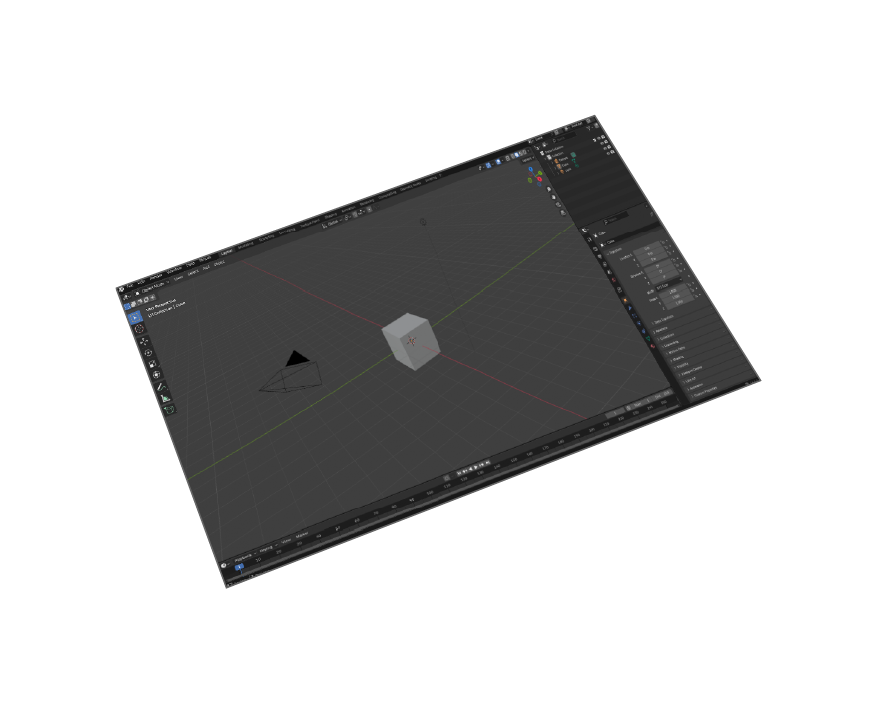
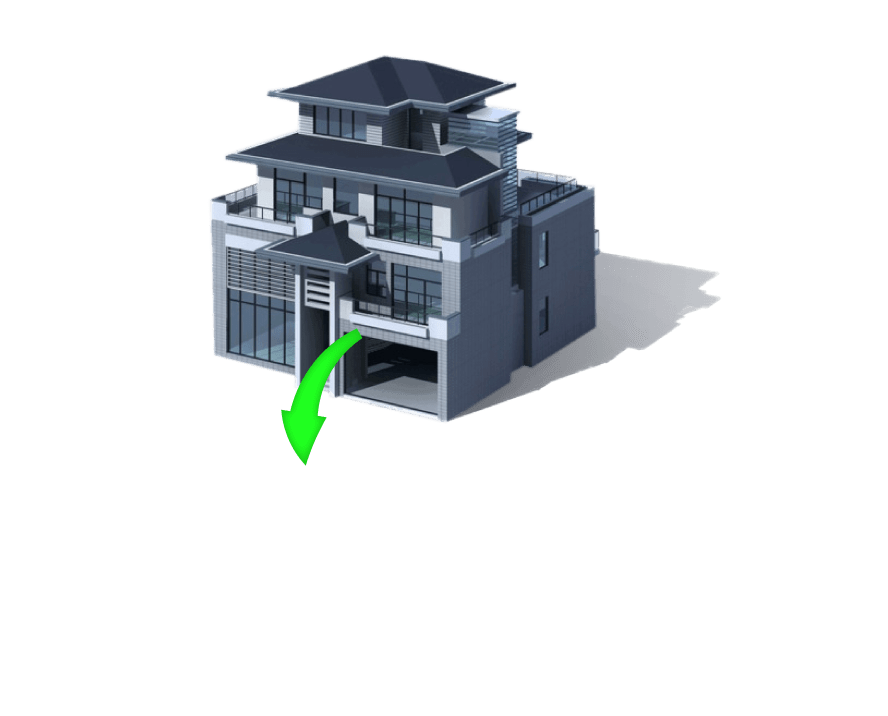

Supports
Blender 5 and earlier versions
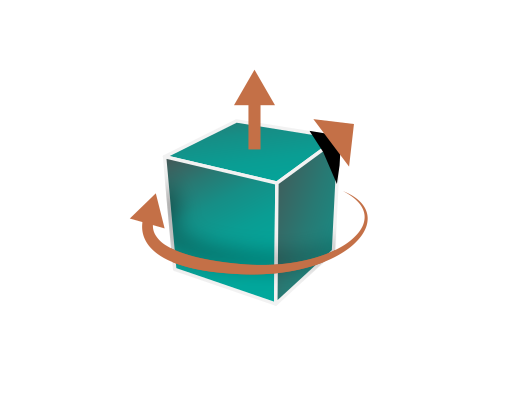
Transformations
Corrections(Up Vector,Rotate by, Scaling Multiplier)

Ease Of Use
Quality outputs in minimal steps
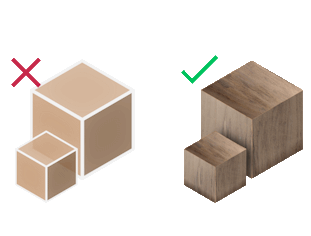
Materials Support
Import your models with their materials
Why Choose SimLab DWG Importer for Blender 5?
AutoCAD to Blender Workflow
Seamlessly import AutoCAD DWG files directly into Blender 5 without intermediate conversions. Our plugin preserves geometry, materials, and layer information, making it ideal for architects, engineers, and 3D artists working with CAD data.
Professional CAD Import Features
Unlike basic import methods, SimLab DWG Importer handles complex CAD entities including blocks, polylines, meshes, and 3D solids. Perfect for converting technical drawings, architectural plans, and engineering models into Blender for visualization.
Use Cases & Applications
• Architectural visualization from AutoCAD plans
• Engineering model rendering and animation
• Product design workflow integration
• Construction documentation to 3D conversion
• Urban planning and landscape visualization
Blender 5 Compatibility
Fully optimized for Blender 5's latest features while maintaining backward compatibility with earlier versions. Works seamlessly with Blender's node-based material system, geometry nodes, and cycles renderer for professional results.


Pricing
Blender DWG Importer
Blender
DWG Importer

How to Install and Use the Plugin
- Open Blender.
-
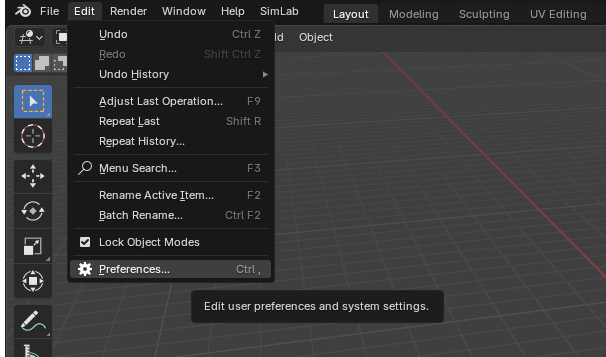
Navigate to Edit > Preferences.
-
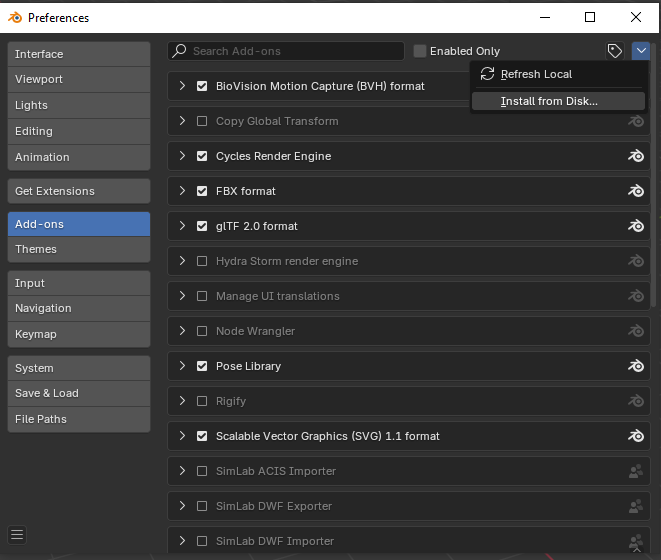
Click on Add-ons, then select the dropdown arrow at the top right and click
Install from Disk.
-
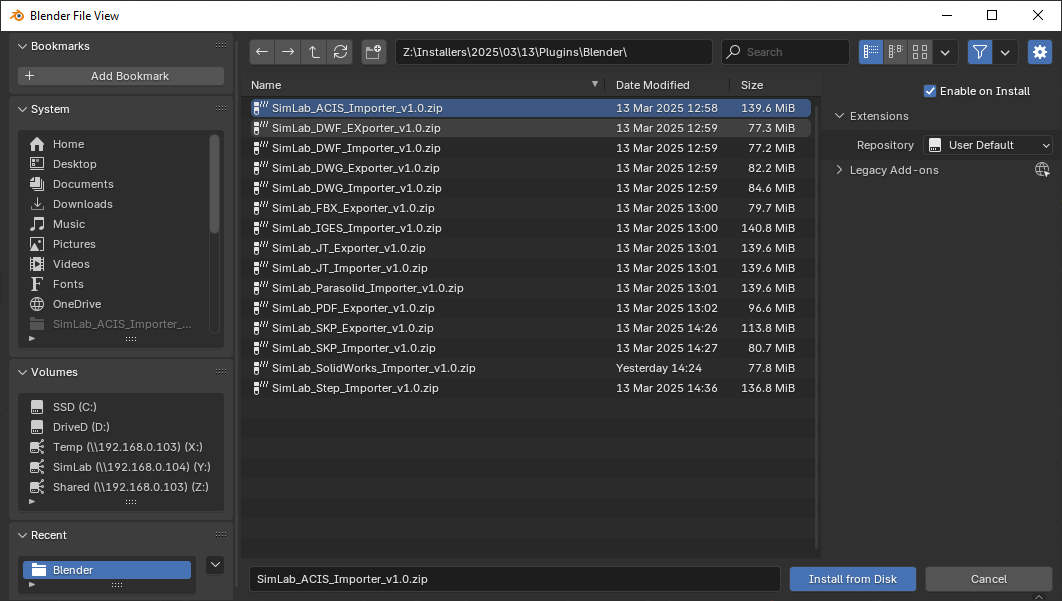
Locate the path where the ZIP file was downloaded , then click Install from Disk.
-
Go to the SimLab tab and locate the Dwg Importer section, as shown in the image.
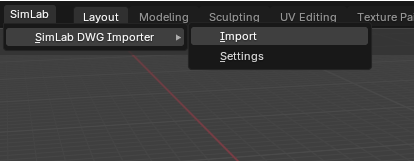
- To obtain a trial license, open Settings and follow the steps provided here.

FAQ
- What information is imported from the DWG model to Blender?
The SimLab DWG Importer transfers complete geometries, materials, colors, layer information, and block instances from AutoCAD DWG files directly into Blender 5. This includes 2D drawings, 3D models, polylines, meshes, and solid geometry with material preservation.
- What versions of Blender are supported?
The plugin supports Blender 5, 4.0, 3.6 LTS, and all earlier versions back to 2.8. Compatible with both Windows and macOS operating systems. The plugin automatically detects your Blender version for optimal compatibility.
- What control do I have over the imported DWG?
Full control over import settings including scale factor, up-axis orientation (Y-up or Z-up), unit conversion, layer filtering, and transformation options. The smart defaults work automatically for most models, but you can fine-tune settings for specific CAD workflows.
- How does this compare to other DWG import methods?
Unlike converting DWG to OBJ or FBX first, SimLab's direct import preserves CAD-specific data like accurate dimensions, layer organization, and material assignments. No intermediate file conversion means faster workflow and better data fidelity.
- Can I import multiple DWG files at once?
Yes, the plugin supports batch import of multiple DWG files, making it efficient for large projects with multiple CAD drawings or assemblies. Each file maintains its own hierarchy and can be imported to separate collections in Blender.
Trial licenses:
- How to request a trial license? and for how long it would be valid?
Check this page for step by step instructions on how to request and activate a trial license.
Trial licenses are valid for 14 days or 30 trials whichever comes first.
Professional licenses:
- Requesting and activating a professional license?
Check this page for step by step, instructions on how to activate a professional license upon receiving a software key that can be used for activating the Plugin.