




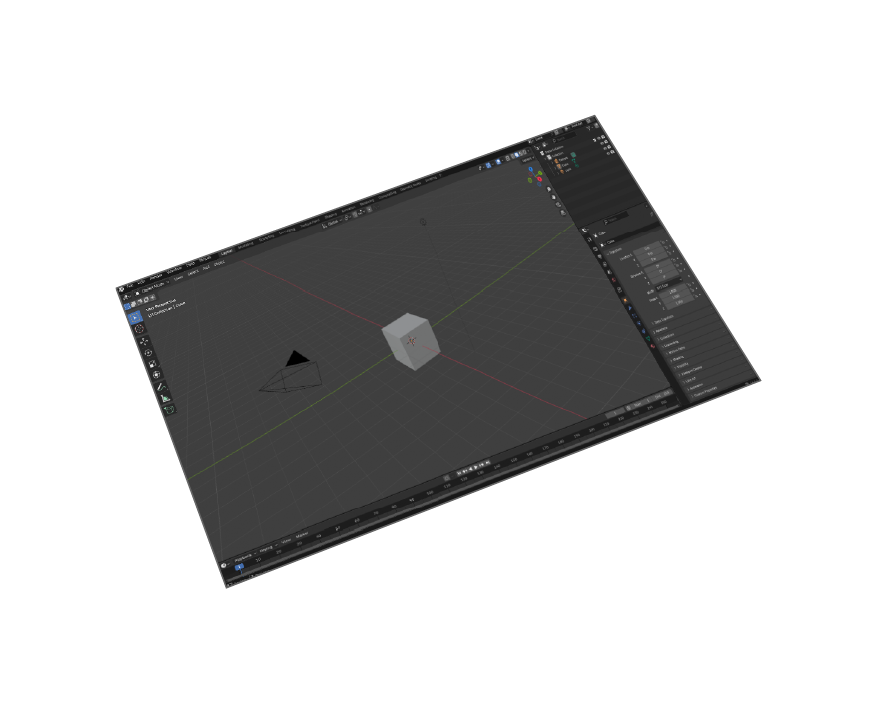

Supports
Blender 5 and older versions

Transformations
Corrections(Up Vector,Rotate by, Scaling Multiplier)

Ease Of Use
Quality outputs in minimal steps
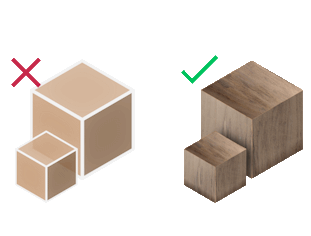
Materials Support
Import your models with their materials
What is DWF Format and How to Convert DWF to Blender
Understanding Design Web Format (DWF)
Design Web Format (DWF) is a secure file format developed by Autodesk for sharing CAD drawings and 3D models. DWF files are commonly used in AutoCAD workflows for design review, collaboration, and presentation purposes.
Unlike native AutoCAD files, DWF format is optimized for viewing and sharing, making it perfect for architectural, engineering, and construction (AEC) professionals who need to distribute design information.
AutoCAD to Blender Workflow
Converting DWF files to Blender enables 3D artists and architects to:
- Import CAD designs into Blender's powerful 3D environment
- Apply advanced materials and lighting to architectural models
- Create photorealistic visualizations from CAD data
- Integrate building designs with Blender's animation tools
Our plugin streamlines this process by maintaining geometry accuracy and material properties during the conversion from DWF to Blender 5.


Pricing
Blender DWF Importer
Blender
DWF Importer

How to Install and Use the Plugin
- Open Blender.
-
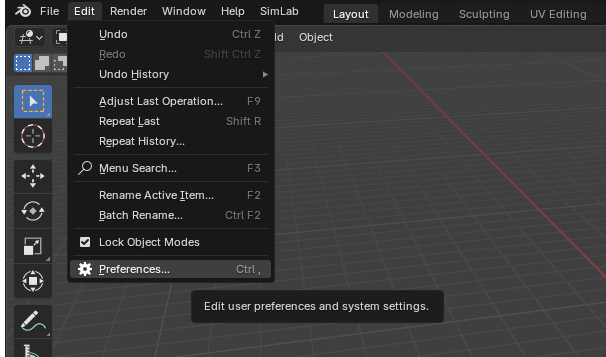
Navigate to Edit > Preferences.
-
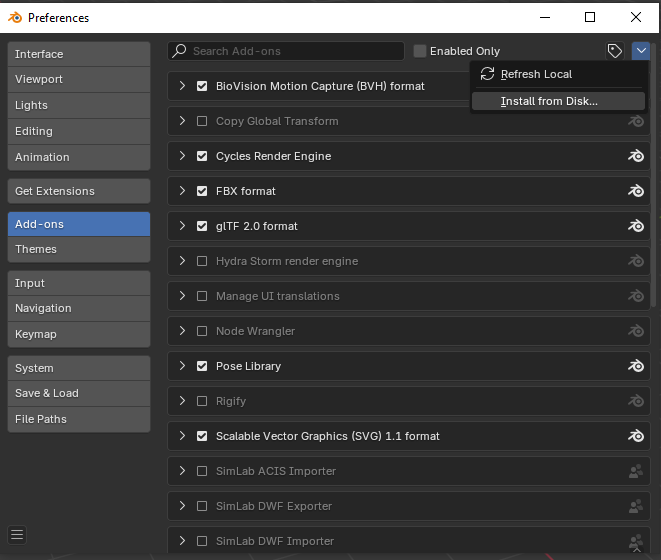
Click on Add-ons, then select the dropdown arrow at the top right and click
Install from Disk.
-
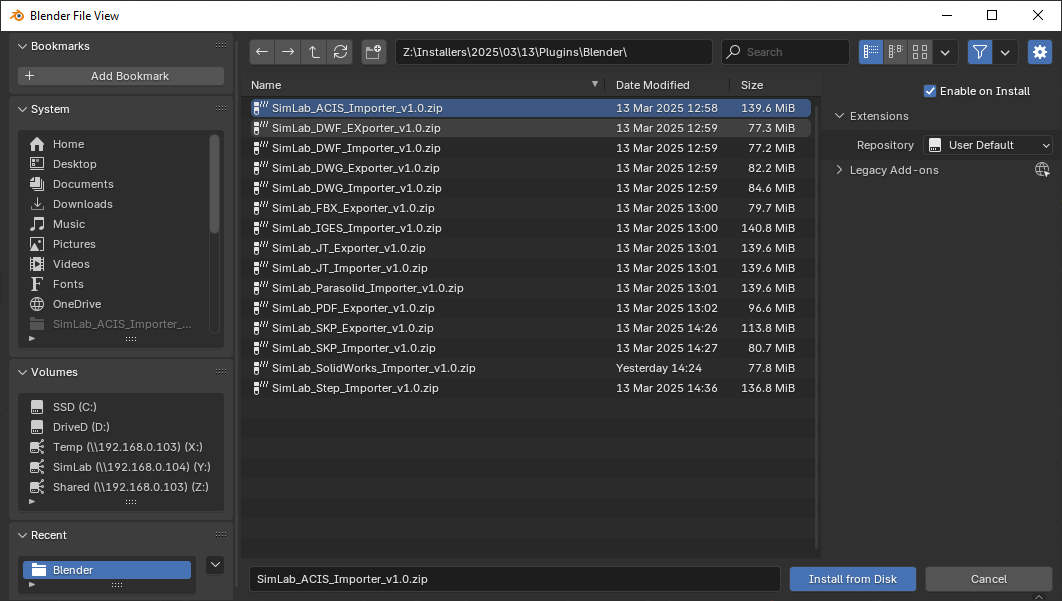
Locate the path where the ZIP file was downloaded , then click Install from Disk.
-
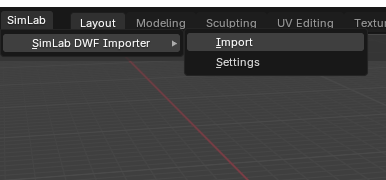
Go to the SimLab tab and locate the DWF Importer section, as shown in the image.
- To obtain a trial license, open Settings and follow the steps provided here.

Frequently Asked Questions
- What data is preserved when converting DWF files to Blender?
Our DWF importer preserves essential 3D data including geometries, materials, and spatial relationships. This ensures your AutoCAD designs maintain their visual integrity when imported into Blender 5.
- Which Blender versions are compatible with the DWF importer?
The SimLab DWF importer supports Blender 5 and all previous versions, optimized for Windows operating systems. This ensures compatibility across different Blender installations in professional workflows.
- How can I customize the DWF import settings in Blender?
The plugin provides intelligent defaults for seamless imports, while offering manual controls for scaling multipliers, rotation adjustments, and up-vector orientation. This flexibility ensures accurate conversion from AutoCAD coordinate systems to Blender's 3D space.
Subscription licenses:
- Will I be able to install the latest version while I have a subscription license?
Yes, a subscription license will make you always up to date with the latest version.
- What happens when my subscription ends?
You can renew your subscription ( auto renewal option is available ), or you can cancel it.
- How can I activate my license?
After buying a subscription you will get a key, follow the steps described on the licensing page.
If you face any problem, please send an email to license@simlab-soft.com
Trial licenses:
- How to request a trial license? and for how long it would be valid?
Check this page for step by step instructions on how to request and activate a trial license.
Trial licenses are valid for 14 days or 30 trials whichever comes first.