




How to Export 3D PDF from Inventor
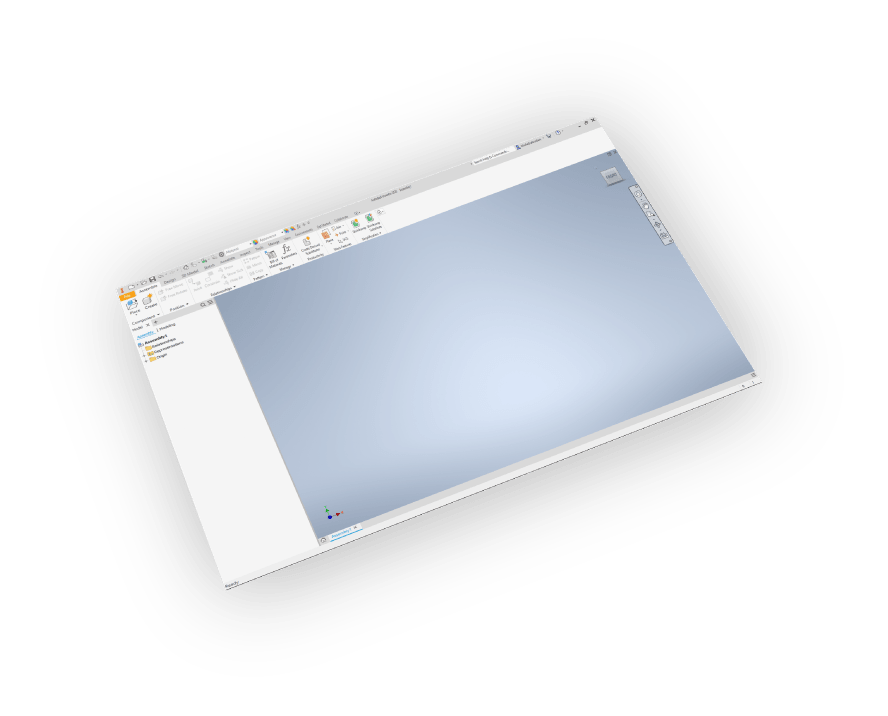
SimLab 3D PDF Exporter is the leading professional plugin for converting Inventor files to interactive 3D PDF format. Whether you need to export Inventor assemblies, parts, or drawings to 3D PDF, our plugin provides a seamless workflow integrated directly into your Inventor interface.
Key Benefits for Inventor to 3D PDF Conversion
- Direct export from Inventor interface - no file conversion needed
- Preserves materials, textures, and visual fidelity
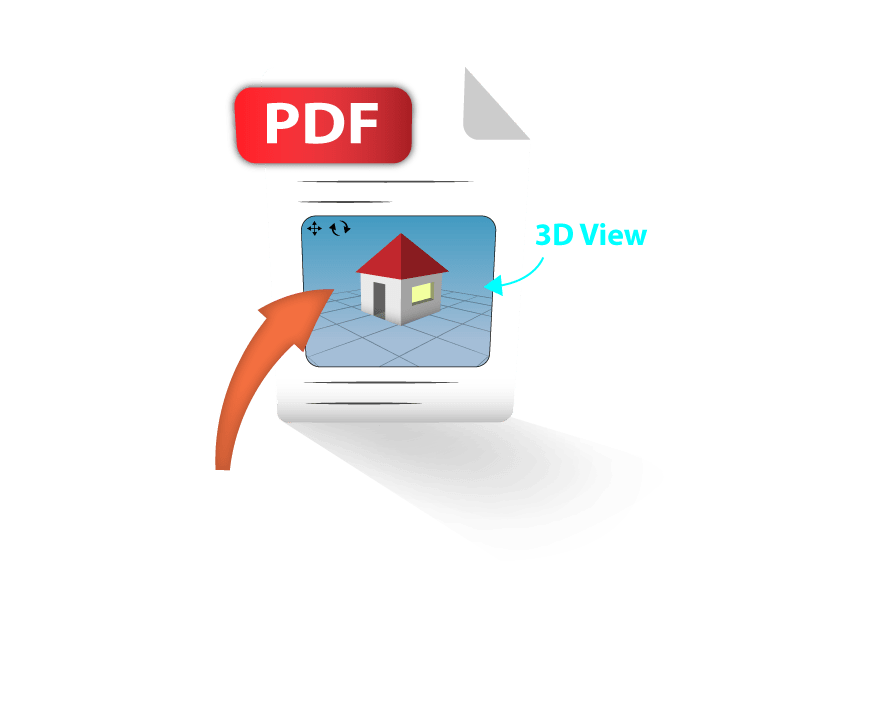
- Creates interactive 3D PDFs viewable in free Adobe Reader
- Supports large assemblies and complex models
- Compatible with Inventor 2013 through 2026
Why Choose SimLab for Autodesk Inventor 3D PDF Export?
Unlike basic PDF export options, SimLab's professional plugin delivers advanced features essential for engineering and design workflows. Convert Inventor to 3D PDF with complete control over output quality, file size optimization, and interactive features. Perfect for sharing designs with clients who don't have Inventor installed.
Features - Inventor 3D PDF Plugin

Full Version Support
Inventor 2013 - 2026 Compatible
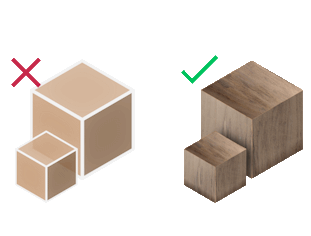
Materials & Textures
Export with full visual fidelity
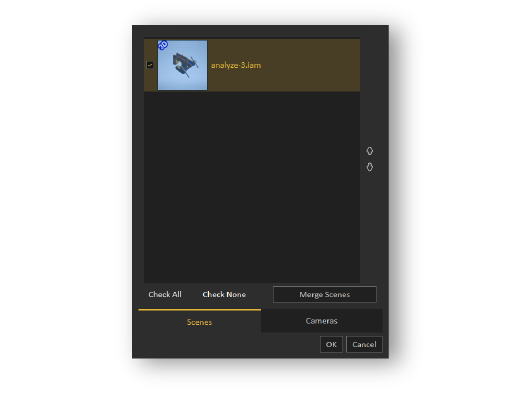
Multiple Views & Cameras
Create 3D and 2D views in one PDF
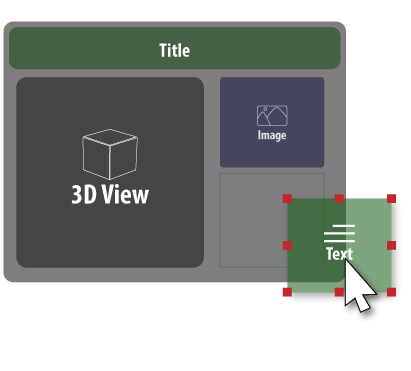
Template Designer
Create custom PDF page layouts
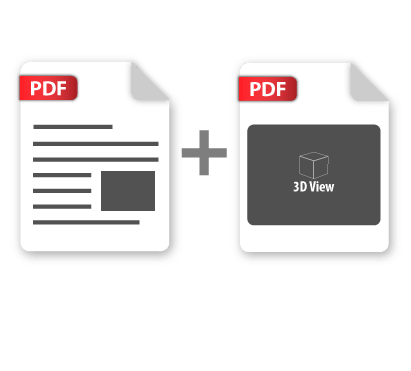
PDF Merge Tool
Combine multiple 3D PDFs


Professional Subscription
Convert Inventor to 3D PDF
Inventor
3D PDF Exporter

How to Export 3D PDF from Inventor - Step by Step
- Download and install the 3D PDF Exporter plugin for Inventor
- Launch Autodesk Inventor (2013-2026)
- Open your Inventor assembly, part, or drawing file
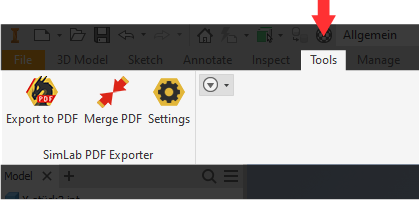
- Navigate to SimLab Tab → 3D PDF Exporter
- Configure export settings (optional)
- Click Export to create your interactive 3D PDF
- For trial activation: Settings → License → Follow activation steps

Frequently Asked Questions - Inventor 3D PDF Export
What software do I need to view 3D PDF files?
3D PDF files exported from Inventor are natively supported in the free Adobe Acrobat Reader. No CAD software or special viewers required - anyone can view and interact with your 3D models.
Can I export Inventor assemblies with materials and textures to 3D PDF?
Yes, the SimLab 3D PDF Exporter preserves all materials, textures, and appearances from your Inventor models. Complex assemblies maintain full visual fidelity in the exported PDF.
How to customize 3D PDF export settings in Inventor?
-
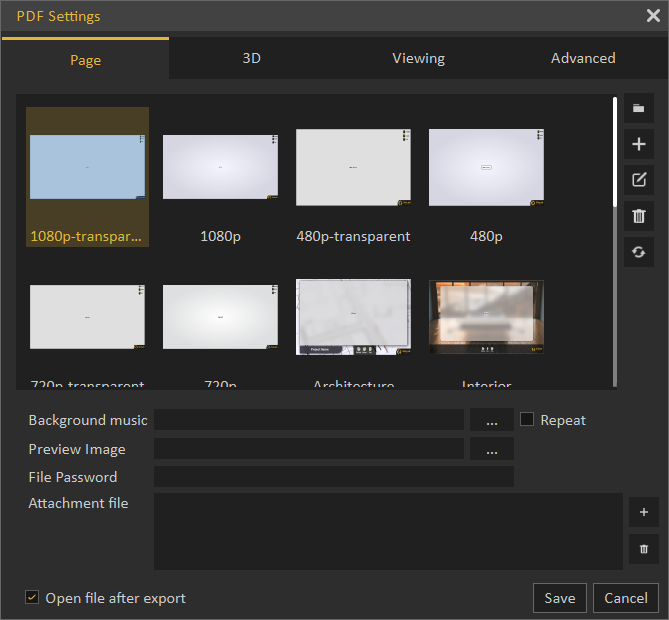
Access SimLab Tab in Inventor and click 3D PDF Exporter Settings
-
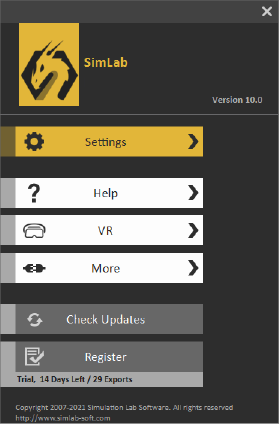
Click Settings to open configuration panel
-
Configure output quality, compression, views, and interactive features
Does the plugin support U3D and PRC formats?
Yes, SimLab 3D PDF Exporter supports both U3D and PRC-based 3D PDF formats. PRC provides better compression for large Inventor assemblies while maintaining quality.
What Inventor data is exported to 3D PDF?
The plugin exports geometry, materials, textures, colors, assembly structure, and view configurations from Inventor to create fully interactive 3D PDFs.
Troubleshooting: Inventor 3D PDF export not working?
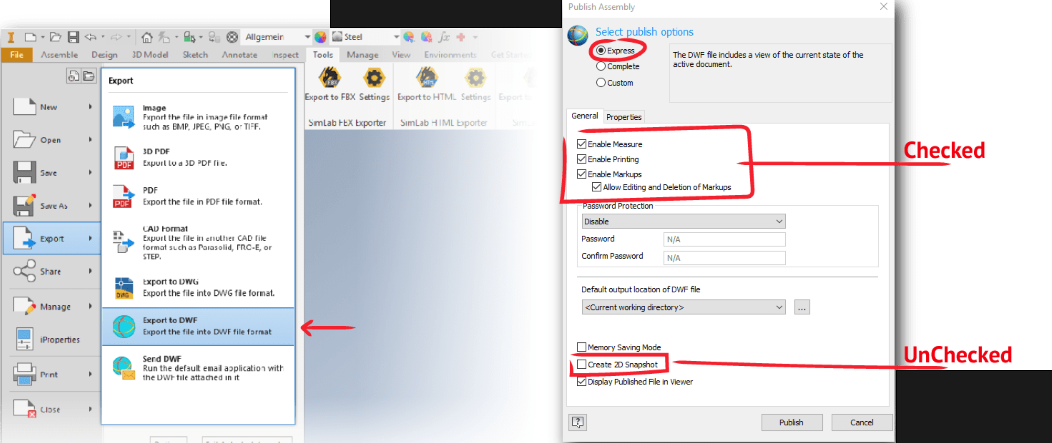
Check your DWF export settings in Inventor. Go to Export → Export to DWF, then set Publish option to Express with these settings:
Which Inventor versions support 3D PDF export?
SimLab 3D PDF Exporter supports Autodesk Inventor 2013, 2014, 2015, 2016, 2017, 2018, 2019, 2020, 2021, 2022, 2023, 2024, 2025, and 2026 on Windows.
How to control 3D PDF file size and quality?
The plugin provides full control over model scale, compression level, texture quality, and polygon optimization. You can balance file size vs. quality based on your sharing needs.
Subscription License Benefits:
Will I get updates with a subscription license?
Yes, subscription licenses include all updates and support for new Inventor versions automatically. Stay current with the latest features and compatibility.
What happens when my subscription expires?
You can renew your subscription (auto-renewal available) or cancel. The plugin continues working until the subscription end date.
How do I activate my license?
After purchase, you'll receive an activation key. Follow the license activation guide.
For support, email license@simlab-soft.com
Free Trial Information:
How do I get a free trial for the Inventor 3D PDF exporter?
Follow our trial activation guide for step-by-step instructions.
Trial licenses are valid for 14 days or 30 uses, whichever comes first. No credit card required.